Is the portal the right channel?
IRIS has two doors. The Taxpayer Portal is a website: you sign in, type a form or upload a spreadsheet, and submit up to 100 forms at a time. It costs nothing and needs no software. Application to Application (A2A) is an API for software that sends XML, up to 100 MB per transmission, and is what filing services and in-house systems use. The portal suits a payer with up to a few hundred returns and a person willing to work a web form in January; A2A suits everyone else. The FIRE to IRIS page has the comparison and the shutdown dates. This page is the portal only.
One rule applies to both: if you file ten or more information returns of any kind in a calendar year, you must file electronically, and corrections to an electronically filed return must be electronic too. The portal takes every form in the 1097, 1098, 1099, 3921, 3922, 5498 and W-2G series, Form 1042-S, and for tax year 2026 adds Forms 8027, 8596, 8955-SSA, the new 1098-VLI, 1099-LPS and 5498-TA, and the two extension requests (8809 and 15397). Form W-2 is not an IRIS form; it goes to the Social Security Administration. You do not file a Form 1096 with anything submitted through IRIS.
Step 1: the TCC
Nothing can be transmitted until the business has an IRIS Taxpayer Portal Transmitter Control Code. It is applied for once, on the IRIS Application for TCC, and the application is the part of the process most likely to take longer than you planned.
- Everyone on the application needs an IRS online account first. Each Responsible Official, Authorized Delegate and Contact signs in through the IRS's identity verification (ID.me) before they can be added. Have them set up their accounts before you open the application; adding a person who has no account stalls it.
- Gather the firm information. Business structure, EIN (the application does not accept an SSN or ITIN as the firm identifier), legal name and any DBA, a physical business address (a P.O. box is accepted only as a mailing address), phone, and for each person their SSN or ITIN, date of birth, title, email and phone.
- Choose the role. Issuer means you file only for the EIN on the application. Transmitter means you file for your own business and others. You cannot select both. A payroll provider or shared-services centre filing for subsidiaries selects Transmitter; one TCC then covers as many companies as it files for. Tick Portal as the transmission method; the Software Developer role is not used with the portal.
- People. At least two Responsible Officials and two Contacts, or one of each for a sole proprietorship, S corporation or single-member LLC. Up to two Authorized Delegates may be added; they can maintain the application and transmit, but cannot sign the first submission.
- Combined Federal/State Filing. If you want the IRS to forward your returns to participating states, say yes here and consent to the disclosure. If the box is not ticked on the application, nothing is forwarded, whatever you later tick on the forms.
- Sign. Every Responsible Official signs the Application Submission page with the five-digit PIN they created at sign-in. The application is not processed until all of them have. Until the application reaches Completed status, each person must select Individual on the Select Your Organization page to find it again.
- Wait, then use it. The IRS says to allow up to 45 days. The TCC appears on your application summary as soon as it is assigned and works immediately; the approval letter follows by mail. A portal TCC is five characters and begins with D. If the status is still Submitted Pending Review after 45 days, call the help desk.
A FIRE TCC, an ACA (AIR) TCC, an IRIS A2A TCC and a portal TCC are four different credentials. Only the portal TCC works in the portal. Do not file the same returns through two systems; the IRS treats that as duplicate filing and it produces penalty notices.
Keep the application current. Changes of DBA, or adding and removing Responsible Officials, Contacts or Delegates, require every Responsible Official to re-sign. A change that gives the firm a new EIN (a sole proprietorship incorporating, for example) requires a new application. And a portal TCC that is not used to transmit a return or request an extension for three consecutive years is deleted and cannot be reactivated. The TCC lifecycle guide covers the personnel and dormancy rules in detail.
Step 2: saved issuers
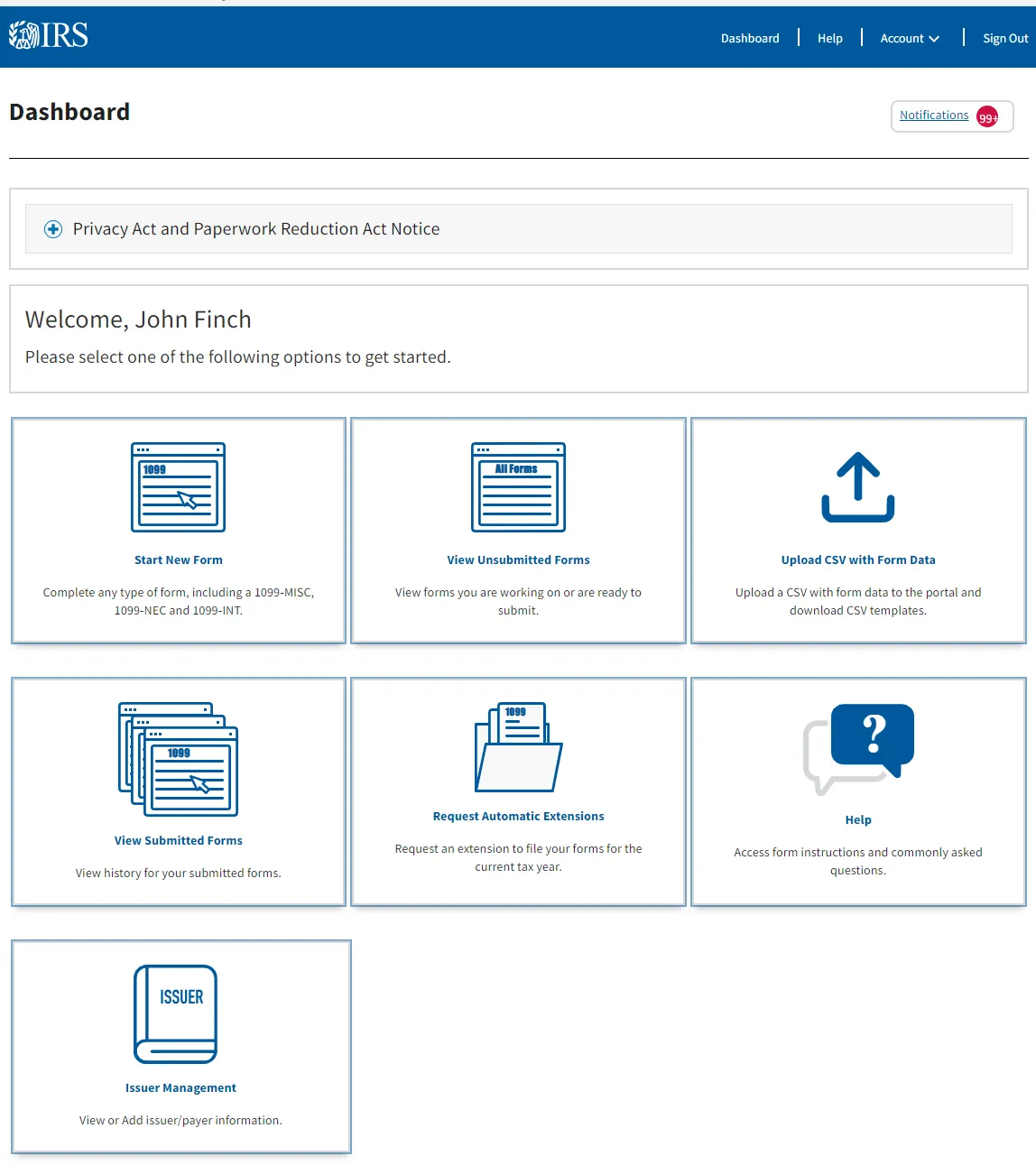
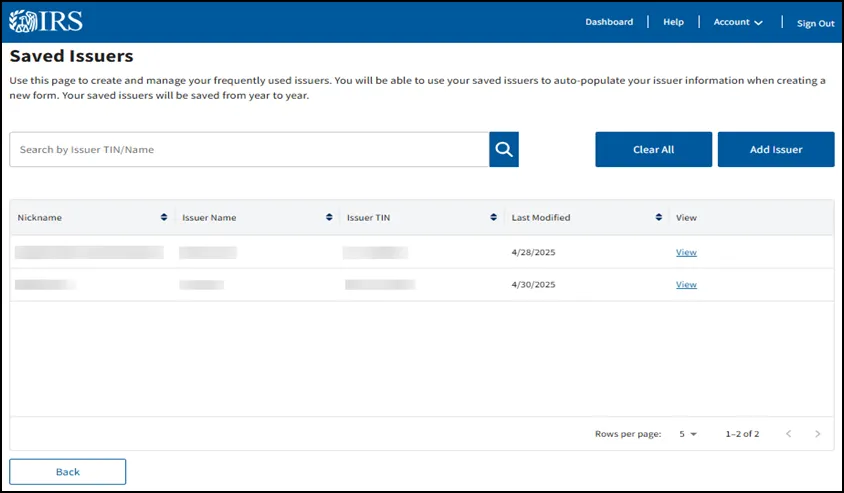
From the dashboard, open Issuer Management and enter the payer (the portal calls it the issuer: payer, lender, trustee, filer, depending on the form) before you start any form. You can save up to 25, each with a nickname, and they carry over from year to year. The name you enter here is the name that goes on every 1099 you file for that issuer, so enter the legal name exactly as the IRS holds it (the name on the CP 575 or Letter 147C), not the trade name. Issuer name and TIN errors are the one thing the portal cannot correct later; see the corrections section below.
Step 3a: key a form
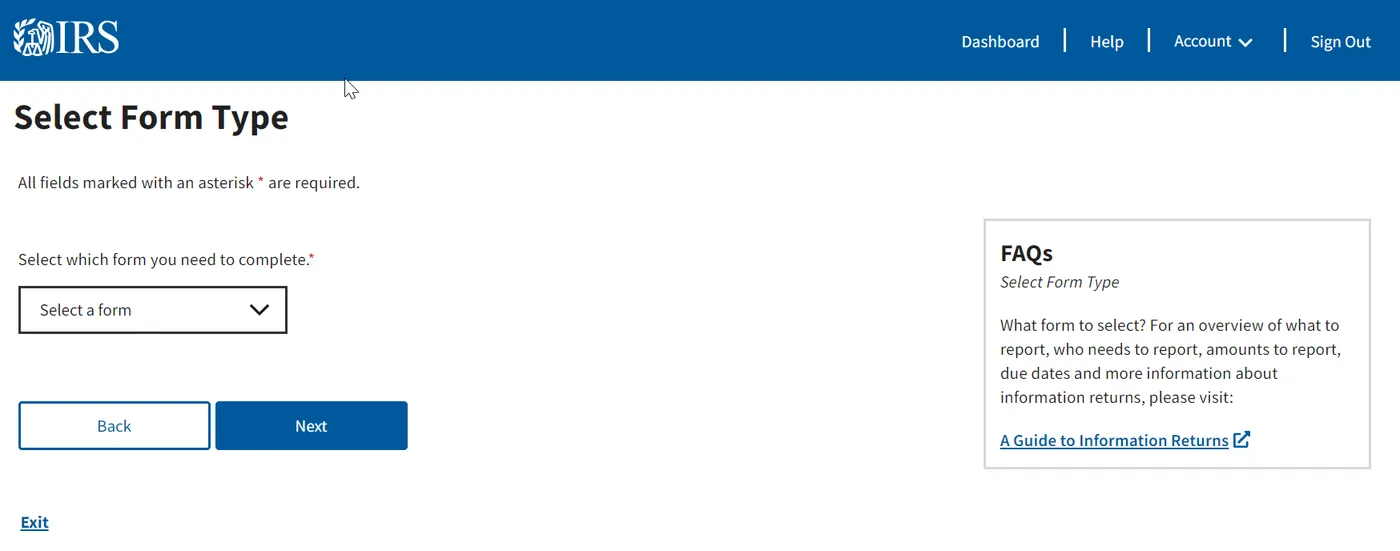
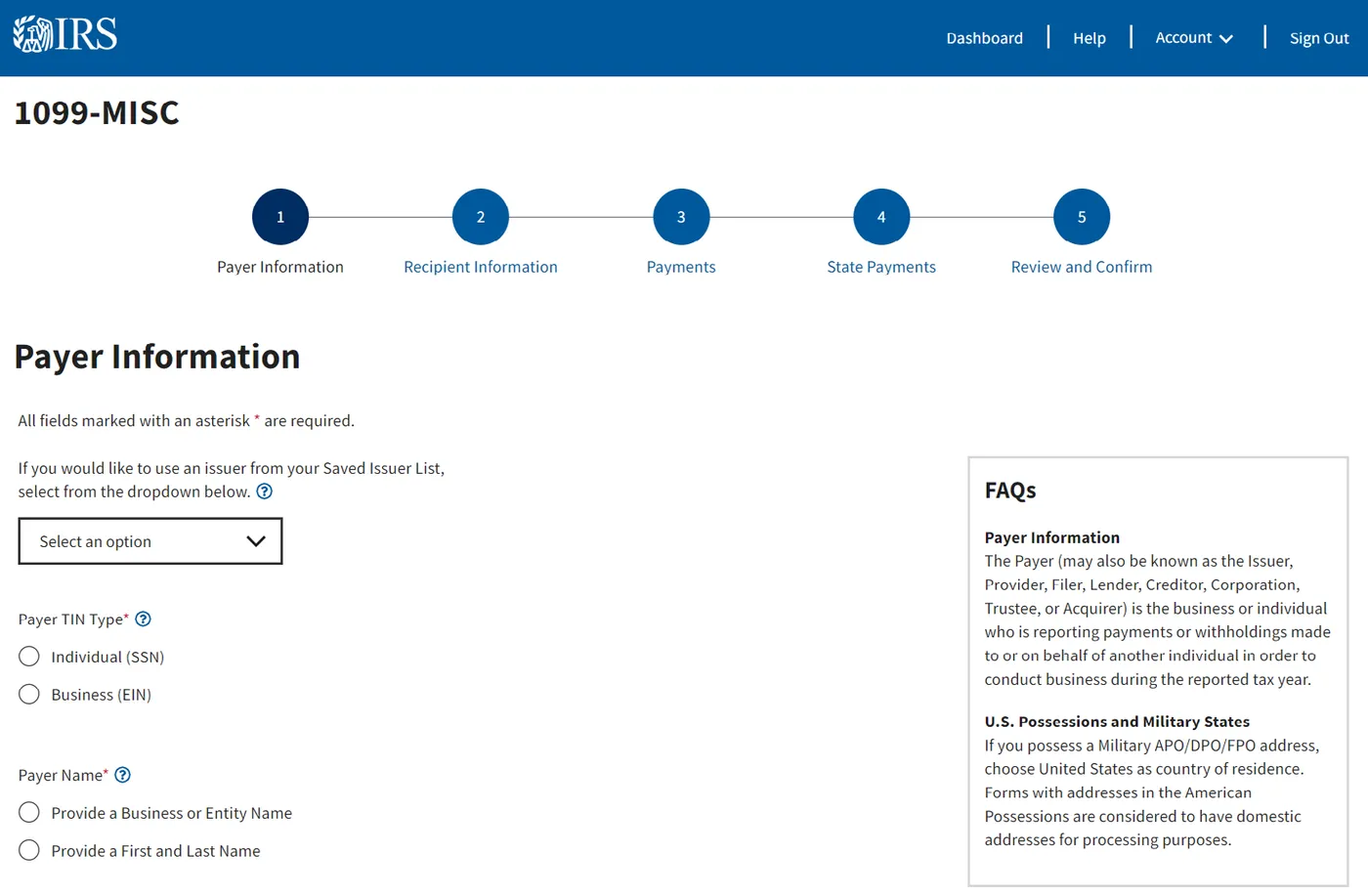
Start New Form takes you through five pages: form type; tax year (the current year or any of the four prior years, back to tax year 2022); issuer, which you pick from the saved list; recipient, which is the payee's name, TIN and address; and payments, which is the boxes on the form. The payments page has a link to the form instructions, and if you are in the CF/SF program it carries the CF/SF box and the state checkboxes for that recipient. A sixth page for state withholding and payments is optional. Review and Confirm shows everything and flags errors; the form then sits on the Unsubmitted Forms page as Ready to Submit until you submit it, alone or with others.
Two habits save time. Run the payee's name and TIN through IRS TIN Matching before you key the form, because the portal validates format, not whether the pairing exists, and a mismatch surfaces as a CP2100 next autumn. And use the portal's Next and Back buttons, not the browser's; the browser back button loses the page.
Step 3b: upload the CSV template
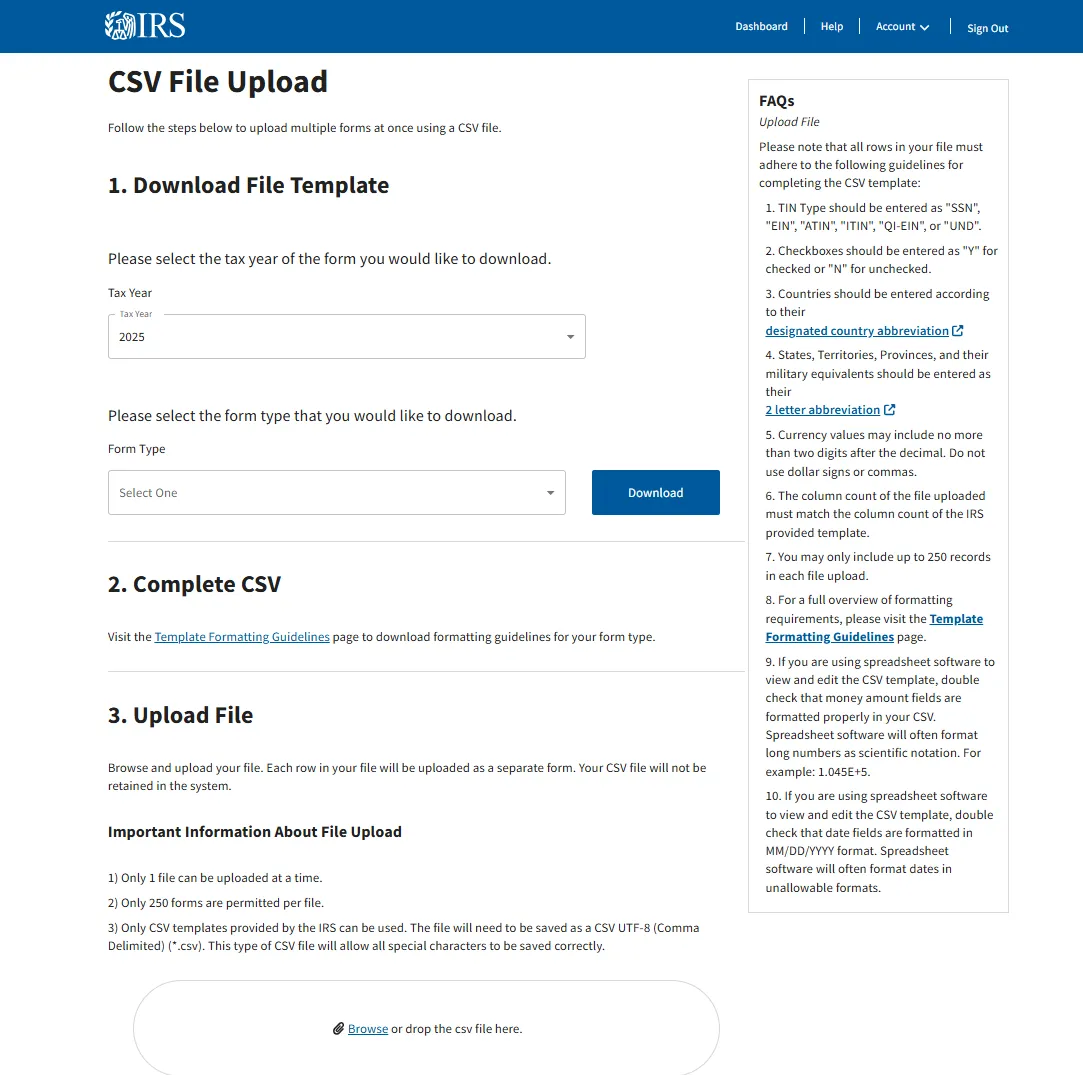
For more than a handful of forms, download the IRS template for the form and tax year, fill it in, and upload it. The rules are strict, and almost every rejected upload is a formatting problem rather than a data problem. In order:
- On the dashboard, choose Upload CSV with Form Data, select the form type, and download the template. Use a fresh template every time; a reused one carries old formatting.
- In the FAQ box on the right, open Template Formatting Guidelines, select your form type, and download the guidelines. They say which columns are required (marked with an asterisk) and what format each takes.
- Fill the template. One form type and one tax year per file, up to 250 records, header row not counted. A transmitter's file may contain several issuers; an issuer's file contains one. Do not copy and paste from another spreadsheet into the template; the formatting comes with it.
- Before saving, set the cells to Text, not General, so that long numbers and ZIP codes survive, and save as CSV UTF-8 (comma delimited). If you reopen the saved file in Excel, the formatting is lost again; fix anything further in a text editor.
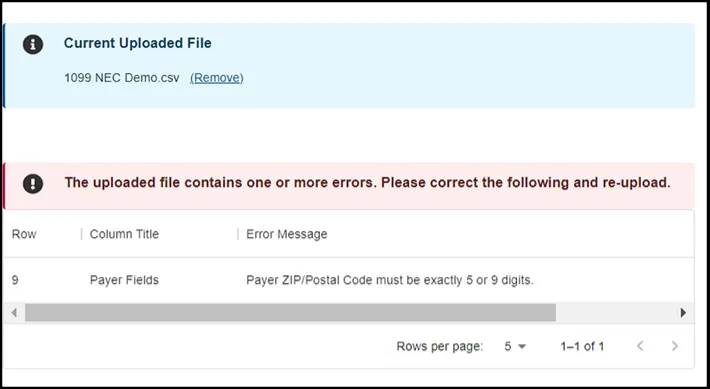
- Upload by Browse or drag and drop. A blue Current Uploaded File box should appear with the file name; the Start button turns blue when the file is accepted. If nothing happens, the file is probably not saved as CSV.
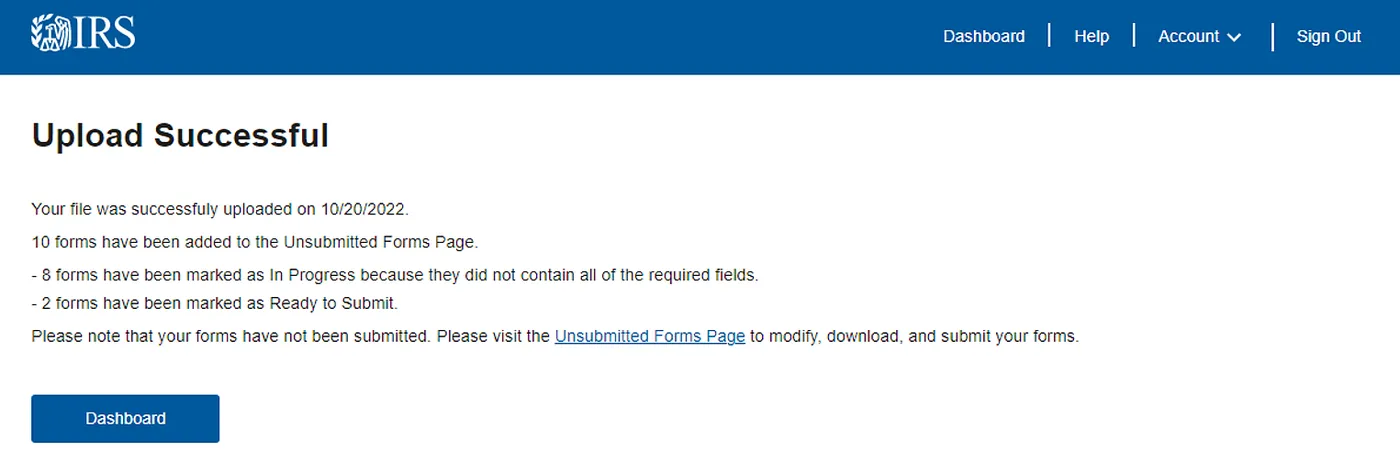
- Start takes you to Review Form Information, where you can delete rows you do not want. Add All moves the forms to Unsubmitted Forms, grouped together, and tells you how many are ready and how many need more information.
The IRS lists the usual reasons a file is rejected. Long numbers turned into scientific notation (1.35E+03) because the column was General. Dates in anything other than MM/DD/YYYY, including two-digit years. ZIP codes with a dash, or with a leading zero dropped. Line breaks inside a cell (Alt+Enter), usually a second address line typed into Address Line 1. Leading, trailing or double spaces. Periods or hashes in name or address lines. More than one tax year in a file. Cells containing a space or $0.00 where the field should be empty. A blank checkbox field, which must be Y or N. The IRIS CSV upload checker reads your file in the browser and flags every one of these before you upload.
Two kinds of error come back. A file-level error means the template or the file could not be read at all, and only one is shown at a time; fix it and upload again. Field-level errors are shown together in a table, one per bad cell. Remove the failed file from the page before uploading the corrected one.
Step 4: submit and read the status
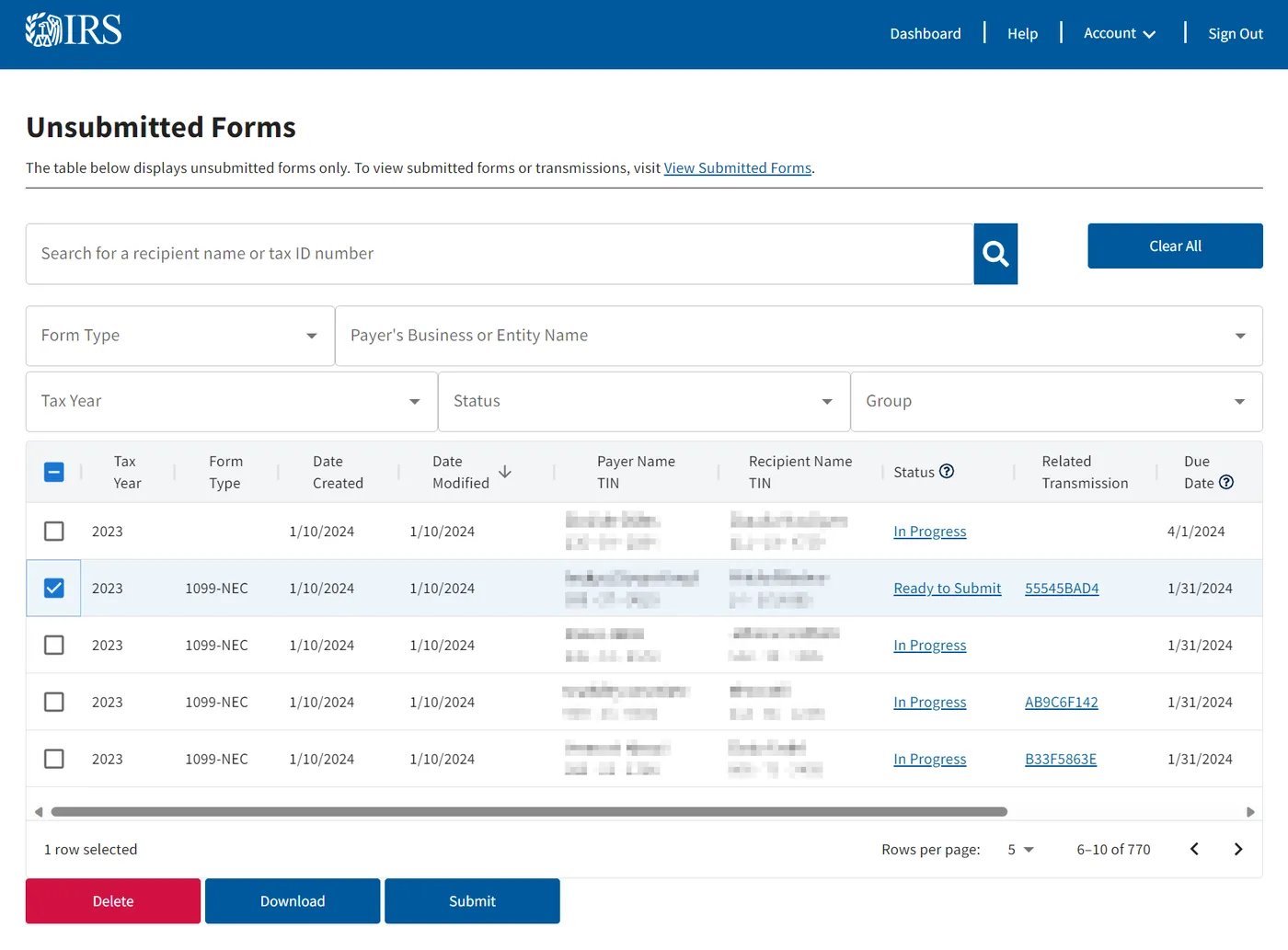
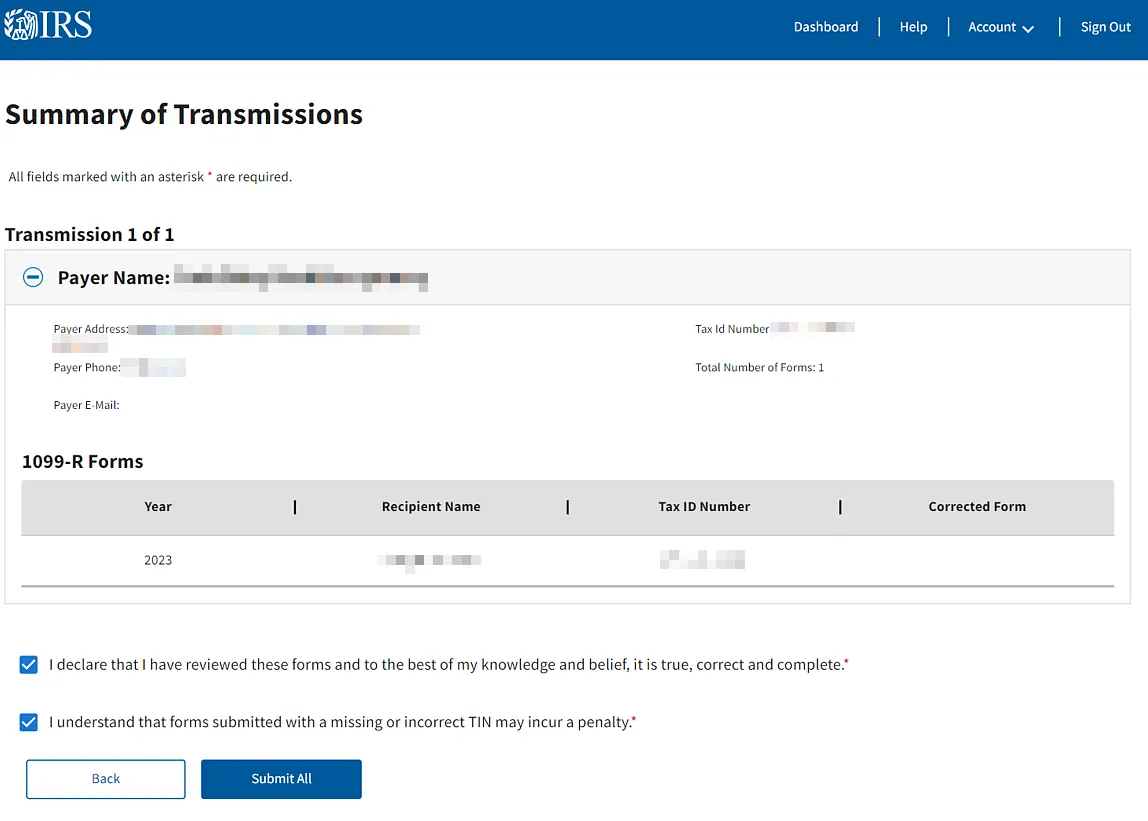
On Unsubmitted Forms, tick the forms (up to 100 per submission) and choose Submit. The Summary of Transmissions page lists them; Submit All sends them and returns a receipt ID, which is your proof of filing. Keep it. View Submitted Forms then shows each transmission with one of five statuses:
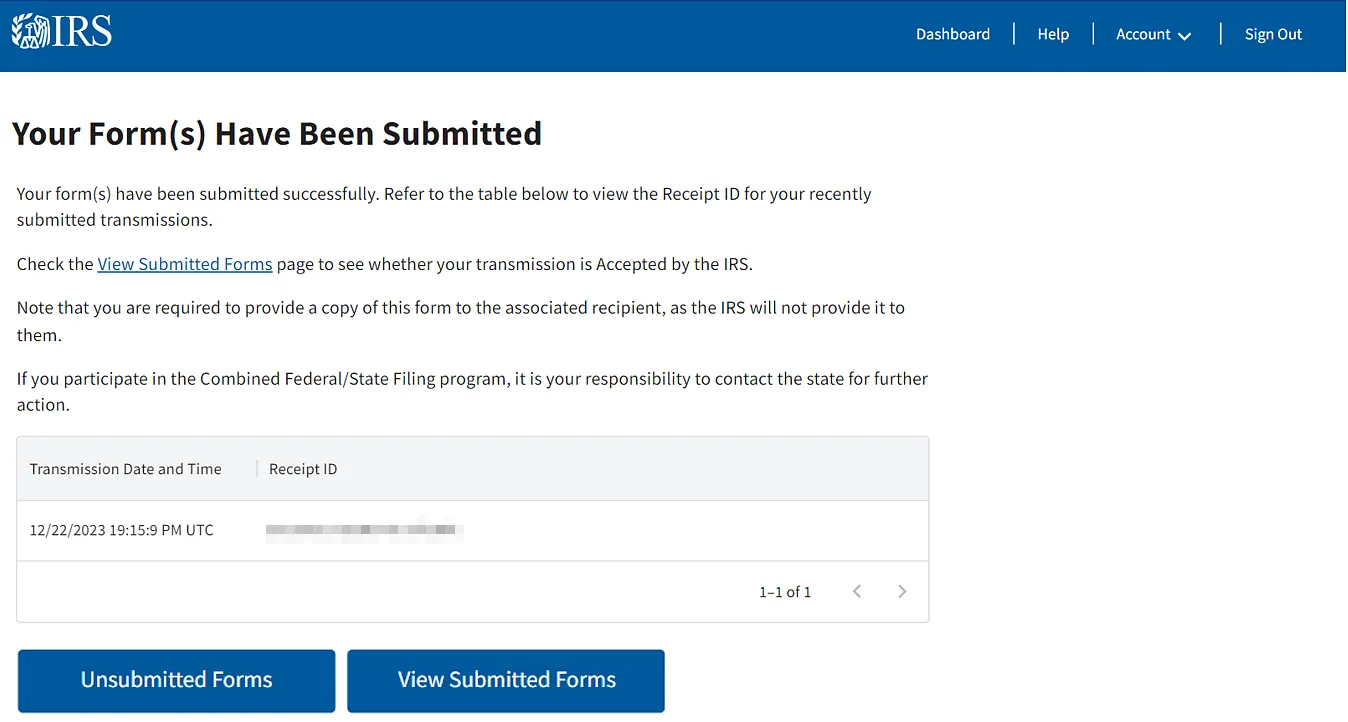
| Status | Meaning | What to do |
|---|---|---|
| Received by IRS | Processing not finished | Allow seven days |
| Accepted | Processed, no errors | Nothing |
| Accepted with Errors | Processed, errors found; the returns count as filed | File a correction for each flagged record |
| Partially Accepted | At least one submission in the transmission was rejected | Replace the rejected submission |
| Rejected | Every submission was rejected | Fix and replace the whole submission |
The acknowledgement download is a JSON file with the raw result, record by record, and it is what you keep with the year's filing records; the IRS asks filers to retain returns, or the data to reconstruct them, for three years from the due date, four for returns with federal withholding and for Form 1099-C. Accepted with Errors is the status to read carefully: the IRS has the return and the filing date stands, but each flagged record is a mismatch that will reappear as a CP2100 line unless corrected.
Step 5: recipient copies
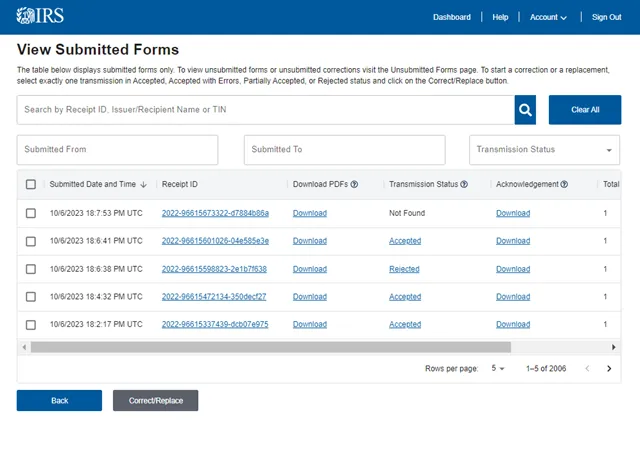
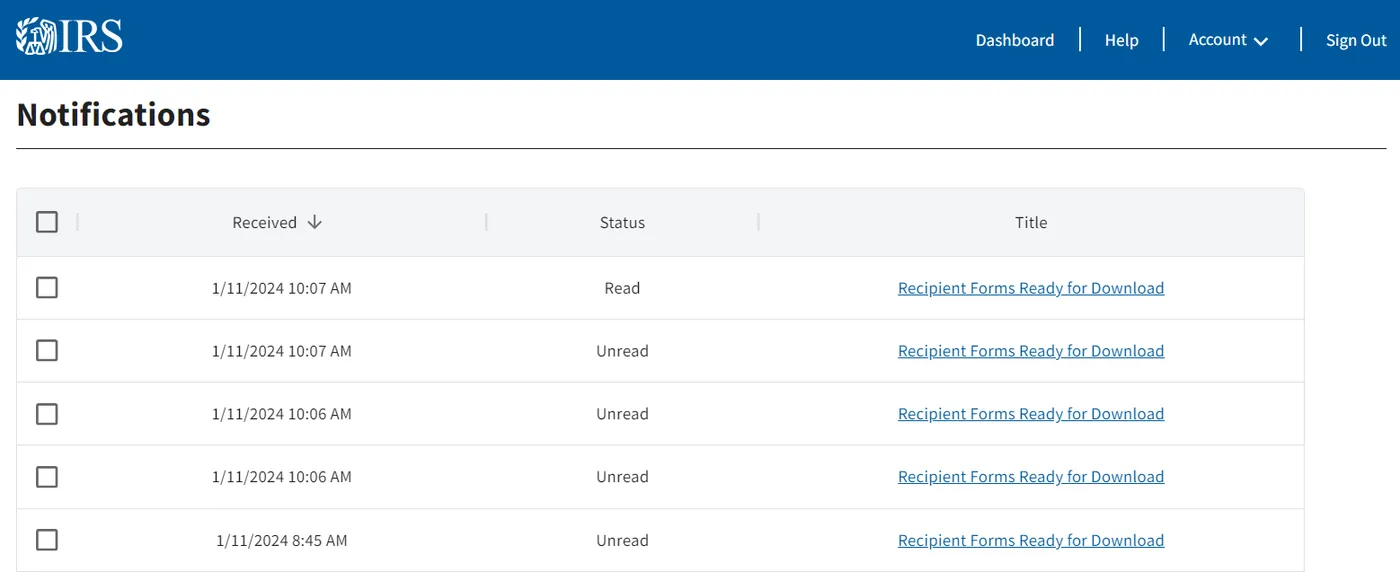
The portal produces the payee statements. On View Submitted Forms choose Download beside the receipt ID, acknowledge the notice that the IRS does not track whether you distributed them, and then open Notifications on the dashboard; allow up to ten minutes for Recipient Forms Ready for Download to appear. The download is a ZIP with one PDF per form and a Recipient Checklist CSV, limited to 100 forms per download. The PDFs are the current IRS recipient copies; on some continuous-use forms the issuer copy has been removed, which is by design. If the download never arrives, the usual cause is a company firewall blocking the file. Statements you produce yourself instead must meet Publication 1179, and the mailing rules on each form page still apply.
Extensions
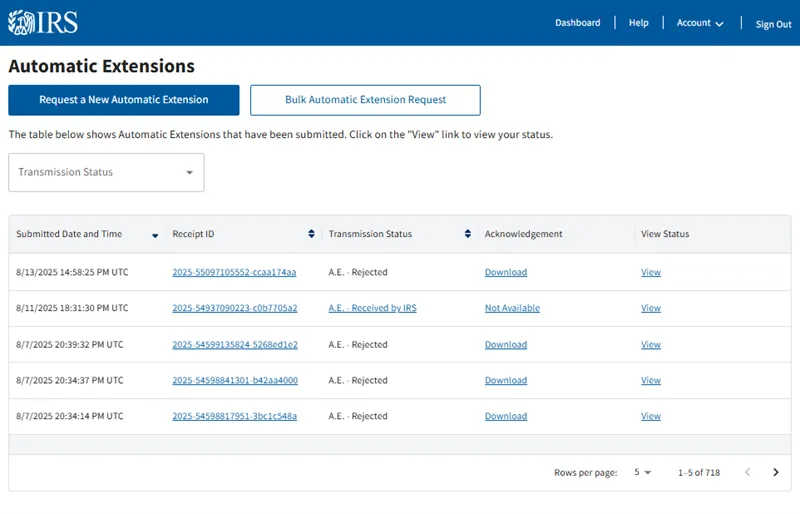
Request Automatic Extension on the dashboard files Form 8809 for a 30-day extension of time to file with the IRS. The button is live only from January 1 to March 31, the request must be submitted by the return's due date, and one request is made per issuer TIN (a transmitter files one for each client). Approval is instant and on screen if the request is complete and timely. A bulk upload on the 8809 CSV template handles many issuers at once. Two limits are the same as on paper: Form 1099-NEC (and W-2) has no automatic extension, only a non-automatic one on a paper Form 8809 with a stated reason, and the second 30 days for any form is paper only. An extension of time to furnish statements to recipients is Form 15397, which for tax year 2026 is also filed in IRIS. The paper Form 8809 page covers the non-automatic cases.
Corrections and replacements
A correction fixes a record the IRS has accepted; a replacement resends a submission the IRS rejected. The portal keeps them separate.
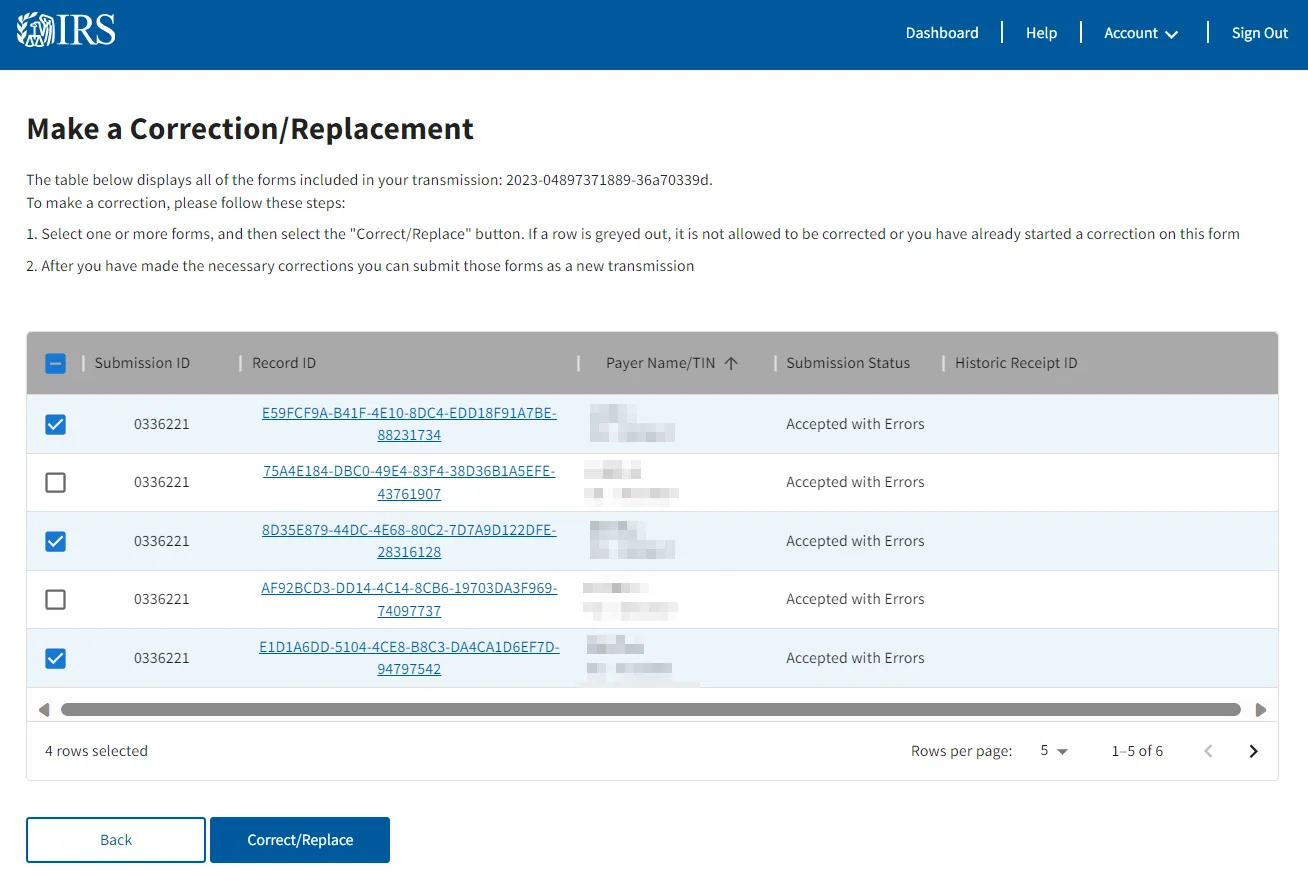
Corrections are made from View Submitted Forms: tick the transmission, choose Correct/Replace, and work through the Make a Correction page. Most errors are one-step: a wrong name or TIN, wrong amounts, a wrong code or indicator, or a form that should not have been filed at all (correct it with every amount set to zero). The one two-step case is the wrong form type, say a 1099-MISC filed where a 1099-NEC was due: first a correction zeroing the original, then, once that is accepted, a new original on the right form. An original can be corrected once; if it needs fixing again, correct the most recent accepted correction, not the original. A correction that is rejected cannot be replaced; go back to the original and correct it again. Corrections to returns filed through the portal must be made through the portal, and you send the payee a corrected statement. The corrections guide covers the penalty consequences and timing.
Issuer errors are the exception. If the issuer's own name or TIN was wrong, the portal cannot correct it. Write to the IRS at 230 Murall Drive, Mail Stop 4360, Kearneysville, WV 25430 with the issuer's name and address, the tax year, the wrong and correct issuer TIN, the TCC, the return type, the number of payees, the filing method, and whether federal tax was withheld.
Replacements follow a rejection. Wait until the status reads Rejected or Partially Accepted, then replace the whole submission; a replacement resends every record in it. Do it within 60 days of the rejection and the returns keep their original filing date; after 60 days they are treated as filed on the replacement date, and if the due date has passed the late-filing penalty runs from there.
Limits and rules on one page
| Item | Portal rule |
|---|---|
| TCC | Portal-only code beginning with D; up to 45 days to issue; deleted after three consecutive unused years |
| People on the application | Two Responsible Officials and two Contacts (one each for sole proprietors, S corporations, single-member LLCs); up to two Authorized Delegates |
| Saved issuers | 25 |
| Tax years | Current year and four prior, back to 2022 |
| CSV file | IRS template only; one form type and one tax year; up to 250 records |
| Submission | Up to 100 forms |
| Recipient copy download | Up to 100 forms per ZIP; appears under Notifications within about ten minutes |
| Extension window | January 1 to March 31; one request per issuer TIN; not for 1099-NEC or W-2 |
| CF/SF states per return | Two (A2A: unlimited); the CF/SF election must also be on the TCC application |
| Corrections | One per original; one-step except for wrong form type; issuer errors by letter |
| Replacement | Within 60 days of rejection to keep the original filing date |
| Records | Three years from the due date; four with federal withholding or for 1099-C |
| Help desk | 866-937-4130 (470-769-5100 international), Monday to Friday 7:30 a.m. to 7 p.m. Eastern; chatbot on the e-Services page around the clock |
Questions people ask
I have a FIRE TCC. Can I use it in the portal?
No. A FIRE code, an ACA code and an IRIS A2A code are all refused by the portal; only an IRIS Taxpayer Portal TCC works, and it has to be applied for separately. The FIRE to IRIS page has the application timeline for the 2027 season.
Can I file for several companies under one TCC?
Yes, if the application selected the Transmitter role. One TCC then transmits for as many issuers as you save (25 in Issuer Management, more by CSV). An Issuer-role TCC files only for the EIN on the application.
Does the portal check that the payee's name and TIN match IRS records?
No. It validates format and required fields. Whether the pairing matches is what IRS TIN Matching tests, and a mismatch filed through the portal comes back on a CP2100 the following autumn. Run the file through TIN Matching before you upload it.
What does Accepted with Errors mean for the penalty?
The returns are filed on the submission date, so there is no late-filing penalty. Each flagged record is an error the IRS expects you to correct; an uncorrected mismatch can lead to a Notice 972CG for an incorrect TIN after the CP2100 season. Correct them promptly and send the payee the corrected statement.
My CSV uploads but every date is rejected. Why?
The column was formatted as a date in the spreadsheet and saved in a different pattern. The template wants MM/DD/YYYY with a four-digit year; set the column format to that, or better, set it to Text and type the dates. The CSV checker finds them.
Where is the tax year 2026 form I need? It is not in the drop-down.
The forms list changes by tax year, and new forms (1098-VLI, 1099-LPS, 5498-TA) appear when the IRS opens the year. If a form you file is missing for the current year, check the IRS known issues and solutions page before calling; new-form delays are posted there.